Creative directors
You have a reference clip whose pacing, lens feel, or mood is difficult to explain in a meeting.
A written brief gives the team shared language for the visual intention.
video prompt generatorMotion to meaning
A video to prompt workflow helps you describe movement, framing, lighting, and atmosphere before you create the next visual. Start from a clip, then refine the resulting direction with the partner tool.
Related formats
Choose the route that matches what you already have: a still image, a written scene, or moving footage.
Useful starting points
Different teams use a clip-to-text workflow for different reasons, from creative reference gathering to faster handoff between production stages.
You have a reference clip whose pacing, lens feel, or mood is difficult to explain in a meeting.
A written brief gives the team shared language for the visual intention.
video prompt generatorA moving reference shows a camera move or subject action that a still frame cannot capture.
The prompt draft preserves motion cues that can guide a new storyboard.
image to video promptYou need to adapt an existing clip into a repeatable concept for a new campaign.
The extracted description becomes a starting point for consistent variations.
image to promptThe visual idea is clear in footage but not yet organized into subject, setting, action, and style.
A structured draft reduces the blank-page problem before manual editing.
script to image prompt generatorSimple workflow
The process separates observation from refinement, so the first draft captures the clip before you decide what to keep or change.
Provide a representative video or describe the clip you want to translate into visual language.
Check the subject, setting, camera behavior, lighting, pace, and atmosphere against the original footage.
Edit the wording for your chosen creative goal, then hand the refined direction into the next generation step.
Output anatomy
A clip contains continuous visual information; a written prompt compresses that information into selected, reusable instructions.
Primary form
Source video
Moving visual reference
Prompt draft
Written creative direction
Time
Source video
Changes across a sequence
Prompt draft
Describes selected moments or motion
Camera
Source video
Shows movement as it happens
Prompt draft
States movement with words such as pan, tracking, or handheld
Subject
Source video
Reveals appearance and behavior
Prompt draft
Names the subject and its important traits
Environment
Source video
Displays setting, depth, and context
Prompt draft
Summarizes location, background, and atmosphere
Lighting
Source video
Shows brightness, color, and contrast
Prompt draft
Translates the observed light into descriptive terms
Best use
Source video
Reference and comparison
Prompt draft
Planning, prompting, and creative handoff
Before and after
The visual reference carries the full sequence; the written version makes the most relevant creative signals easier to reuse and revise.
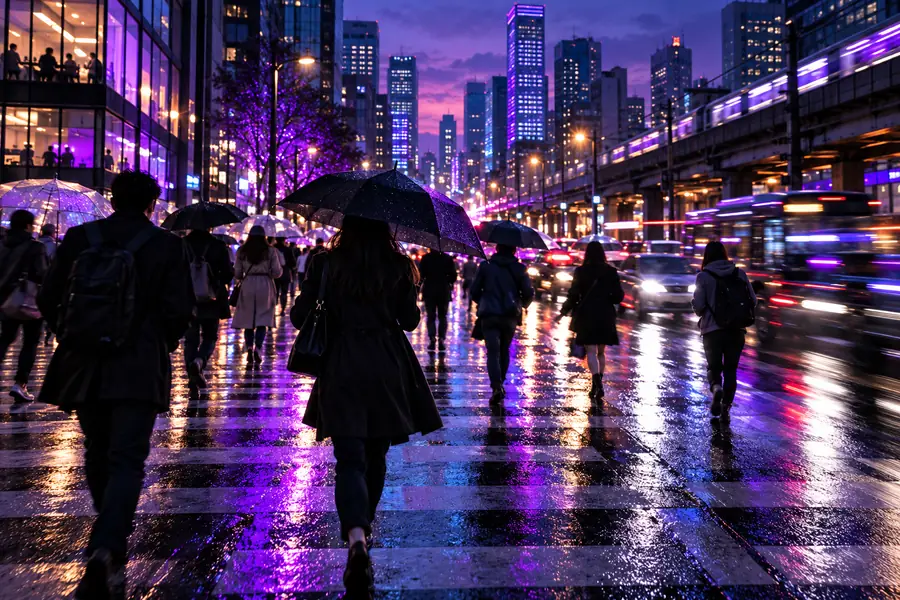 Reference clip
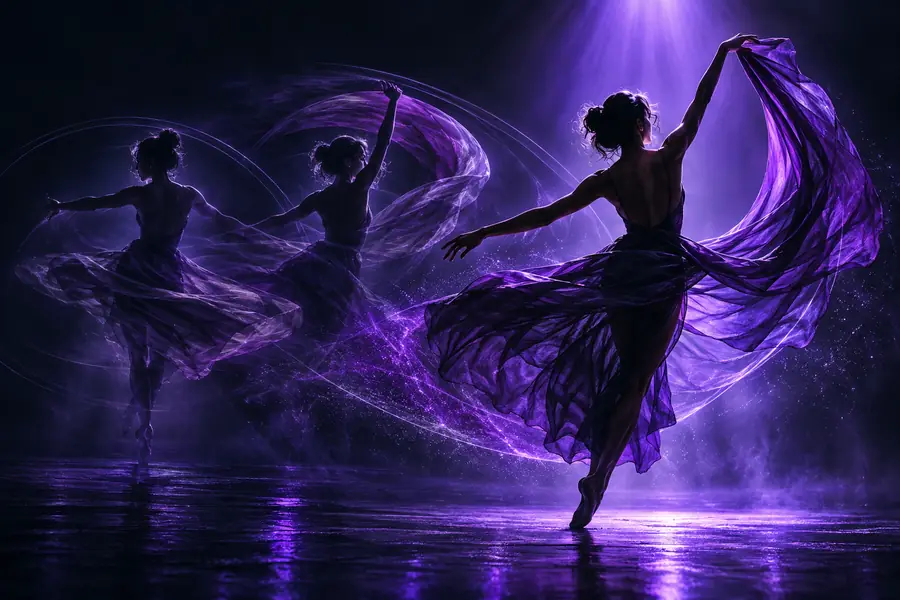 Prompt direction
Practical checkpoints
Treat the first result as a draft and use these checkpoints to keep the final direction tied to the source.
Know the limits
Conversion makes a clip easier to describe, but a prompt is still a compressed interpretation of moving footage.
A written description may not retain every beat, pause, or transition in the original sequence.
Workaround
Add explicit timing, pacing, and transition notes during manual review.
The output is not a frame-by-frame storyboard or a complete technical shot log.
Workaround
Choose key frames or create a separate shot list when continuity matters.
A tool can observe visible details but cannot reliably infer the director's unstated purpose.
Workaround
Add the emotional goal, audience, and creative constraints yourself.
Lens data, codecs, color pipelines, and other camera metadata may not appear in the description.
Workaround
Keep the original production notes beside the generated prompt.
Ready to refine
Use a clip as your reference, inspect the draft, and adjust the wording until it reflects the subject, movement, setting, and mood you actually want to carry forward.
Convert a videoCommon questions
It turns observable elements of a clip into written creative direction. That can include the subject, setting, camera movement, lighting, atmosphere, and visible action.
Yes, motion can be represented with language about tracking, panning, zooming, pacing, or subject movement. Review the draft against the clip because the wording may simplify complex timing.
No. A prompt is a selective summary intended to guide creative work, not a frame-by-frame technical record. Use a shot list or key-frame review when exact continuity is important.
Check whether it names the main subject, action, environment, camera behavior, lighting, and mood. Remove details that are incidental and add any creative intent the footage alone cannot reveal.
Yes, it can serve as a starting brief for a related visual concept. Expect to edit the wording for the destination tool, especially when you need a different aspect ratio, style, duration, or level of motion control.